It's like Undo, but for your voice
Screen recording with
takes, like a real movie.
Made a mistake?
Retry that part on the spot, without redoing the whole thing.
Keep the best takes, export in seconds — no editing, no stitching.
Free for 7 days · No credit card · Buy once, own it — no subscription
Features
The problem
Recording shouldn't mean
re-recording everything
The endless redo
Three minutes into a ten-minute recording, you stumble on one sentence, and now you're recording the whole thing again.
By try four, you're still not happy with the result.
The file chaos
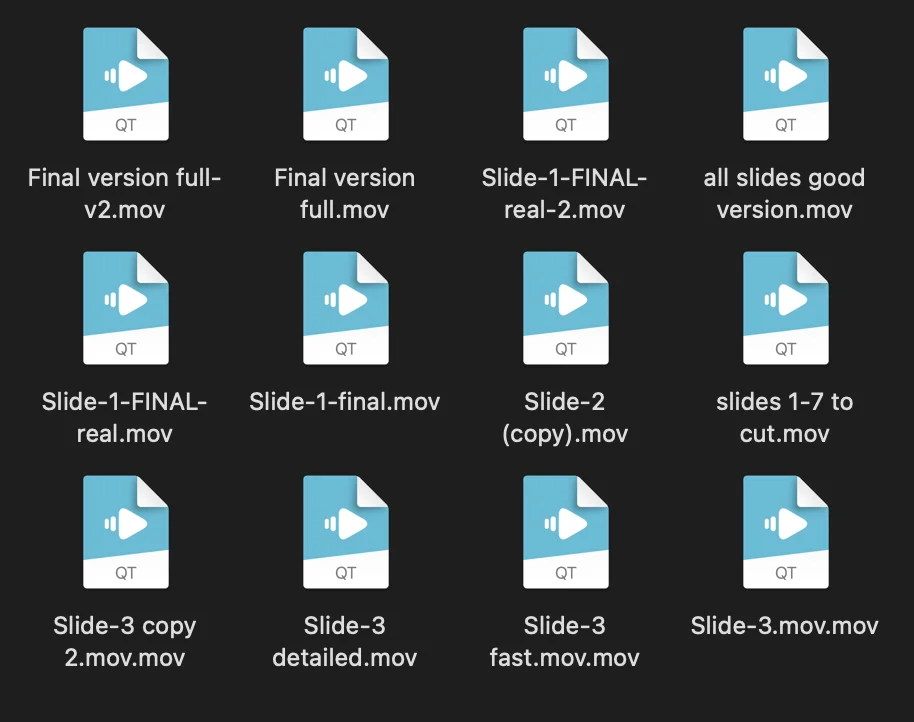
So you record each topic separately, but now you have way too many files to rename, order, and stitch together by hand.
Slide-1-final.mov, Slide-1-FINAL-real.mov… which one was the good one?
The editing marathon
No problem, you'll “fix it in post” and... two hours later you're still reviewing videos, doing jump cuts and re-aligning audio.
Your day was supposed to be about producing a tutorial, not video editing.
The solution
Think in scenes and takes, like a script supervisor
You can finally feel free to experiment and make mistakes.
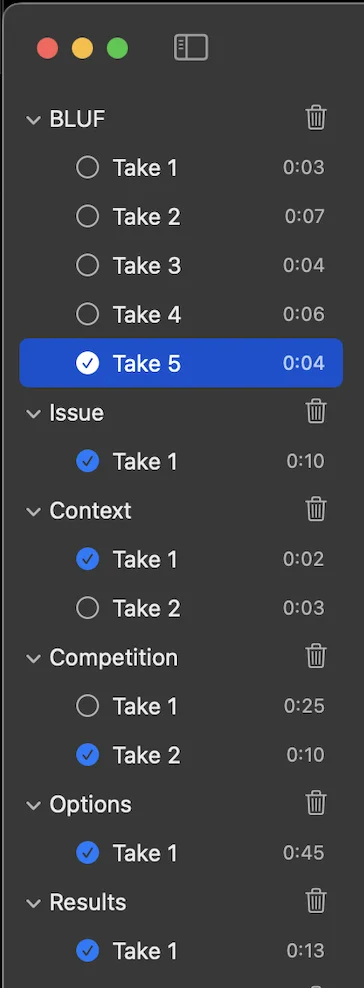
Each topic is a scene. Each attempt is a take.
Do as many takes as you need, while
every scene you've already recorded stays safe.
Then just export the good ones as one video.
Nothing piling up to review and nothing to edit.
Record
Narrate one topic, end the take
Review
Instantly play back what you just recorded
Decide
Retake, or approve and go to next scene
Export
One click to assemble the final video

Before & after
Same lesson. Two afternoons.
The landscape
“How is this different from
what I already use?”
Most screen tools are built on an assumption that doesn't fit
narrated recordings: lessons, demos, walkthroughs.
Meeting recorders
assume one continuous take. Perfect for a quick clip to a coworker, but one stumble means re-recording the whole thing.
Tutorial polishers
assume you'll edit afterward. Cuts, zooms, and captions make beautiful results, and cost real editing hours.
Full editors
assume editing is the job. Powerful, and overkill when you just wanted a clean narration.
AI fixers
assume a machine should clean you up afterward. Cut your umms, smooth your voice, correct your eye contact, until the video is almost you.
One More Take assumes three things: you'll make mistakes, you want no AI slop in the loop, and no editing either to fix them. Simply record each topic, retake or tweak the bad ones, publish the keepers. 100% human, 100% you.
Features
Built for presenters & course creators,
not editors
Scene-and-take workflow
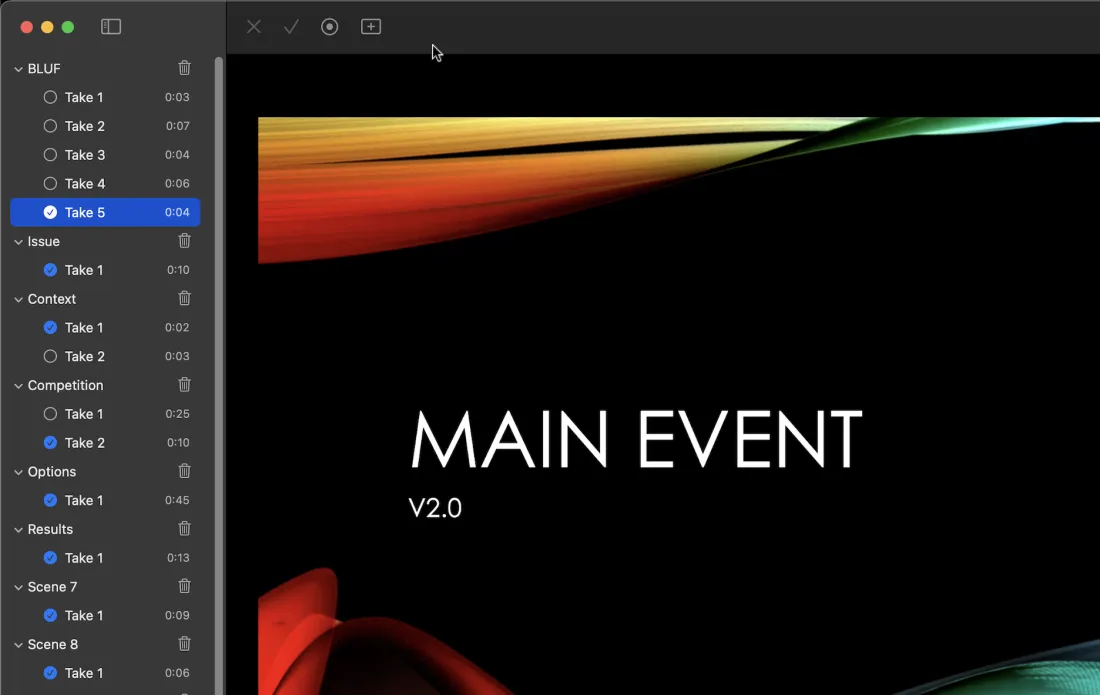
Each topic is a scene. Each scene can have multiple takes — pick the best take and move on. No timeline required.
Instant retake
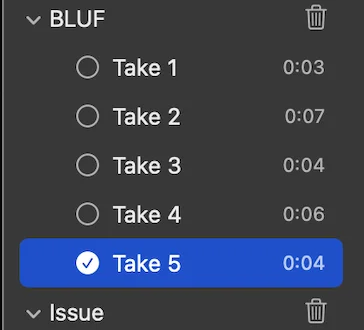
One shortcut to discard a bad take and go straight back to ready. No file juggling, no context switching.
Per-take trimming
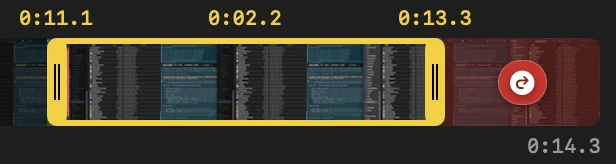
Clean up the start and end of any take with simple drag handles. No separate editor needed. Redo just the end of a take if you like the rest.
Auto-save & crash recovery
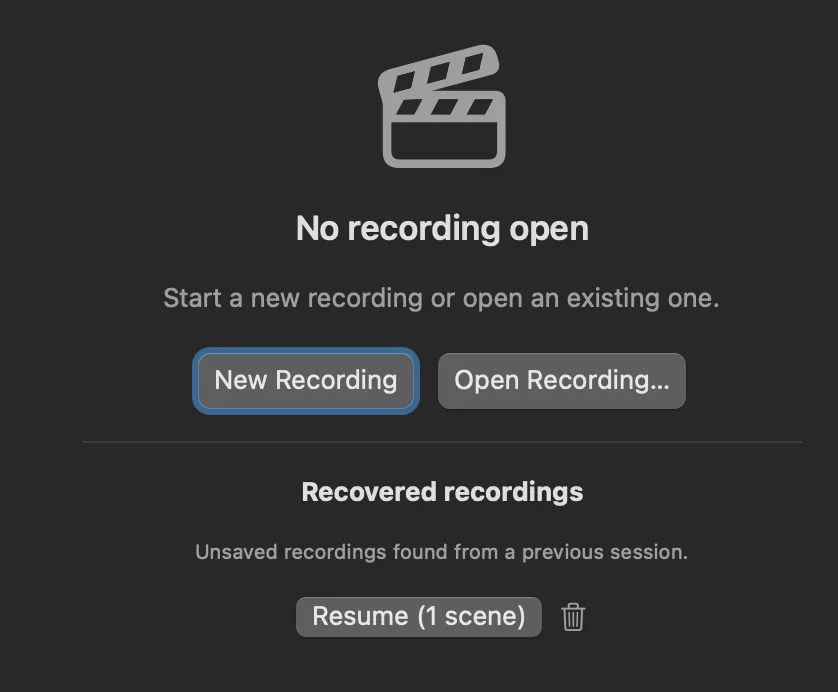
Your work is saved after every action. If the computer crashes, your recording is right where you left it on next launch.
Instant export
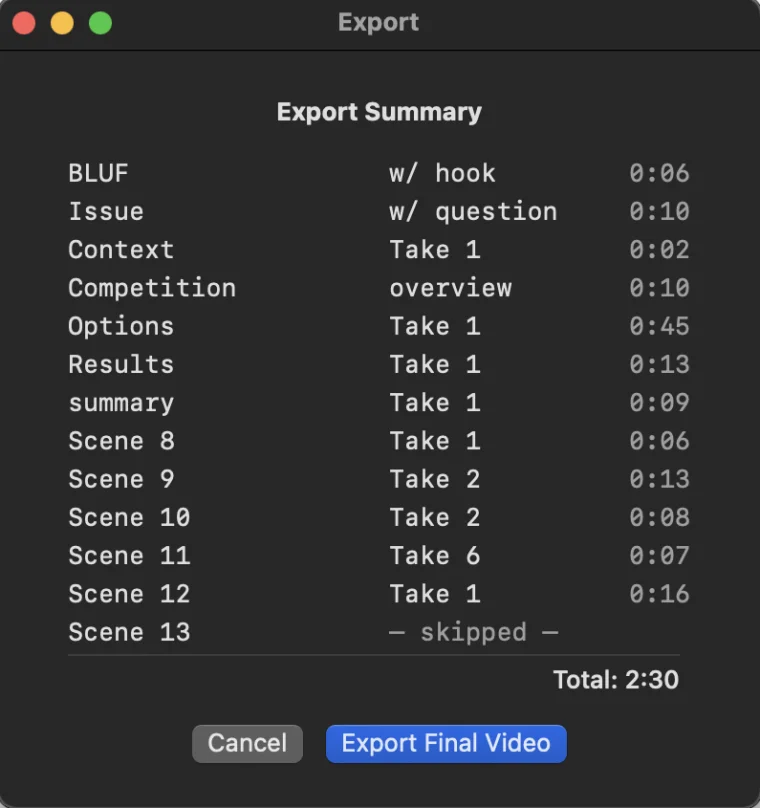
Selected takes are concatenated without re-encoding. Passthrough export is fast and lossless — no quality loss, no waiting.
Keyboard-driven
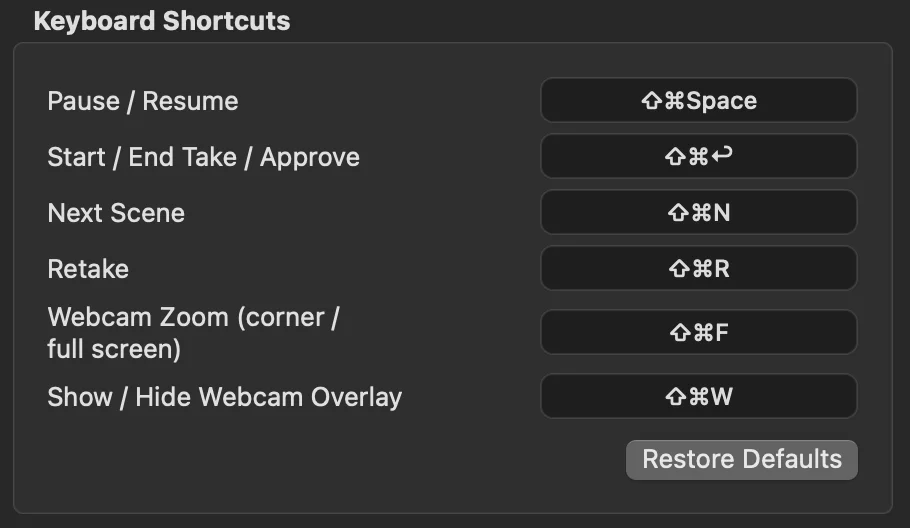
Control everything with global shortcuts while presenting in PowerPoint, Keynote, or any other app. Fully customizable.
A real Mac app, built on Apple's ScreenCaptureKit and AVFoundation rather than a browser in a box. No cloud, no account, no upload: nothing you record ever leaves your Mac.
Who it's for
One job, six names for it
Record a narrated walkthrough, get it published, move on.
Course creators
“A lesson in the course I sell.”
- Re-record the lesson that flopped, not the module.
- One clean file per lesson, ready for your course platform.
- Buy once, with no per-seat plan eating your margin.
Professors
“A lecture in my online unit.”
- Fix the slide you misspoke on. The other forty stay as they were.
- Shortcuts work in full-screen Keynote or PowerPoint, so the lecture looks like a lecture.
- Nothing leaves your Mac. Education discount available.
Teachers
“A video for the flipped classroom.”
- Record between classes. A stumble costs thirty seconds, not the period.
- Your face on screen with the webcam overlay, no editing.
- One video per lesson, one click to export.
Trainers
“A training module.”
- When the software changes, redo one scene and re-export.
- Per-take trim cuts the dead air at the start of every demo.
- Auto-save means a crash never costs you the module.
Sales engineers
“A product demo I send to a prospect.”
- A personalised demo before the follow-up email, in one sitting.
- Retake the pricing slide without redoing the walkthrough.
- Prospects see you, not a machine’s clean-up of you.
Consultants
“A walkthrough for the client presentation.”
- Billable hours go to the model, not the video editor.
- Hand off to Final Cut or Resolve if the client wants polish.
- A walkthrough the client can replay, in your voice, unedited.
Webcam overlay
Want your face on screen too?
Add a live webcam overlay to any recording: drag it where you want, resize it, round or square. Click it (or press ⌘⇧F) to zoom between a corner and full screen, recorded right into the take, with no compositing and no extra editing.
Pricing
Buy it once,
no subscription.
7-day free trial · No credit card
One More Take for Mac
- Every feature, forever
- One license per Mac
- Free minor versions updates
- No account. No subscription.
You own this version outright, the way desktop software used to work. Future major versions are an optional, discounted upgrade.
Teaching at a school or institution? Email us about an education discount.
FAQ
Quick answers
Does One More Take work with PowerPoint and Keynote?
Yes. Global shortcuts mean you control recording without ever leaving your slides.
Can I add my webcam?
Yes. A custom live webcam overlay (picture-in-picture) can be baked right into the recording. Place it, resize it, round or square, and zoom it corner ↔ full screen with a click or ⌘⇧F. If you prefer macOS system presenter overlay, you can use that too.
Can I export to Final Cut Pro?
Yes, One More Take supports export to FCP XML files, with each scene becoming a clip in the timeline.
Can I add a take to a scene, after recording later ones?
Yes. Each take is its own file, so you can retake any scene independently without touching the others.
Does One More Take use AI?
No. Your video is 100% human: what you recorded is what your audience gets. When a take isn't right, you don't fix it with a machine, you just take it again. There is no cloud either, so your work never leaves your Mac.
Why is there no subscription?
This is how we like to buy software ourselves: pay once when you need it, keep it forever. If a future version has something you want, buy the upgrade. If it doesn't, keep using the version you have.
Is there an education discount?
Yes. Email us from your institution address.
It's like Undo, but for your voice
Make videos with a real voice. Yours.
Feel free to make mistakes, then review and retry as many times as you like.
Walk away with a clean video:
100% human, every frame recorded by you, every word spoken by you.
The download is both the free trial and the full version. A license key unlocks it, and there's nothing else to install.